How to Check if a Page Is Indexed by Google in 2026
Ethan Parker

The most reliable way to find out whether Google has indexed a page is to inspect the exact URL in Google Search Console’s URL Inspection tool.
If Search Console shows “URL is on Google,” the page has been indexed and is eligible to appear in Google Search. However, being indexed does not automatically mean the page will rank for your target keywords or appear every time you search for it.
If you do not own the website, you can also try Google’s site: search operator. Finding the URL there is a useful sign that Google knows about the page, but not finding it does not necessarily mean the URL is missing from Google’s index.
A simple rule is:
Use URL Inspection for pages you control. Use site: for a quick public check. Use a bulk index checker when you need to check hundreds or thousands of URLs.
How Do I Check if a Page Is Indexed in Google Search Console?
Google Search Console should usually be your first stop when you own or manage the website.
Its URL Inspection tool lets you see what Google knows about a specific URL, including its indexing status, crawl information, and canonical details.
Google’s official URL Inspection documentation also explains that the tool can help you identify indexing problems, test a live page, and request indexing after making changes.
The process is straightforward.
1. Open the Correct Search Console Property
Sign in to Google Search Console and select the property that contains the page you want to inspect.
Then enter the complete URL into the inspection bar.
For example:
https://example.com/blog/google-indexing-guide
Make sure you use the exact version of the URL you expect Google to index.
These URLs may look similar:
http://example.com/page
https://example.com/page
https://www.example.com/page
But technically, they are different URLs.
Google may eventually consolidate different versions, but when you are investigating an indexing problem, it is important to start with the exact URL you intend Google to use.
2. Read Google's Indexing Verdict
After inspecting the URL, Search Console will usually return a message such as:
URL is on Google
or:
URL is not on Google
If the page is on Google, the URL has been indexed.
If it is not, do not stop at the headline. Open the Page indexing section and look at the reason Google provides.
The report can contain useful information about how Google discovered the page, when it was crawled, whether indexing is allowed, and which canonical URL Google selected.
3. Look at the Last Crawl Information
The crawl details can tell you when Google last processed the page.
This becomes especially important after you make a technical change.
For example, imagine a page accidentally had a noindex directive yesterday and you removed it today.
The normal URL Inspection report may still show information from Google's previous crawl because it does not automatically fetch the page again every time you open the report.
That is where Test Live URL becomes useful.
Does “URL Is on Google” Mean the Page Is Showing in Search?
Not always.
This is one of the most important distinctions to understand when working with Google indexing.
When Search Console says “URL is on Google,” it means Google has indexed the URL and considers it eligible to appear in Search.
It does not mean the page must appear for every query you test.
For example, a page might be indexed but:
Rank on page eight or nine.
Be considered irrelevant for the keyword you searched.
Lose the result to another page that Google considers more relevant.
Appear differently depending on language, location, device, or search intent.
Google's search process separates indexing from serving search results.
Indexing means Google has processed and stored information about the page.
Serving happens later, when Google decides which indexed pages are most useful for a particular search.
That means ranking position should not be used as your primary indexing test.
If Search Console confirms that a URL is indexed but you cannot find it for your target keyword, you are more likely dealing with a ranking, relevance, or competition problem than a pure indexing problem.
What Is the Difference Between URL Inspection and Test Live URL?
The normal URL Inspection report and the Live Test answer two different questions.
URL Inspection shows what Google currently knows about the indexed version of the URL.
Test Live URL checks the version Google can access right now.
That difference matters when you have recently changed something on the page.
Suppose Search Console shows:
Indexing allowed: No
You check the page and discover this tag:
<meta name="robots" content="noindex">
You remove the tag and publish the corrected version.
If you immediately reopen the normal inspection report, it may still show the old information because Google has not crawled the updated page yet.
Running Test Live URL allows you to check whether Google can now access and process the corrected page.
However, there is another important distinction:
Passing the Live Test does not mean the page has already been indexed.
It only tells you that Google's systems can currently access the page and that there may not be an obvious technical barrier preventing processing.
Google still decides separately whether the URL should enter its index.
Can I Use Google site: Search to Check if a Page Is Indexed?
Yes, but it is better to treat site: searches as a quick secondary check rather than an exact database of everything Google has indexed.
To check a specific URL, you might search:
site:https://example.com/blog/example-page
To check pages from an entire domain, you can search:
site:example.com
If the exact page appears, that is useful evidence that Google can return the URL in its search results.
The problem is what happens when the page does not appear.
Google itself explains that site: searches are not guaranteed to return every indexed page. Broad searches such as site:example.com can also omit URLs that are actually in Google's index.
So the correct interpretation is:
Found with site:
Strong positive evidence that Google can return the URL.
Not found with site:
Not enough evidence to conclude that the URL is definitely unindexed.
If you own the website, inspect the URL in Search Console instead.
This becomes particularly important on large websites.
Comparing the approximate number of results from site:example.com with the number of URLs in your XML sitemap is not a reliable way to measure your site's real indexing coverage.
How Google Indexing Works Before a Page Appears in Search
Understanding Google's process makes Search Console reports much easier to interpret.
Google generally describes Search as having three major stages:
Crawling → Indexing → Serving search results
Not every URL completes every stage.
Crawling
Google first has to discover that the URL exists.
Discovery may happen through:
Internal links.
External links.
Redirects.
XML sitemaps.
Previously known URLs.
Googlebot can then request the page.
For websites that rely heavily on JavaScript, Google may also need to render the page before it can properly understand the content.
Indexing
After crawling, Google analyzes the page.
It evaluates the content, page structure, canonical signals, duplicates, and other information.
Google may determine that another URL contains the same or substantially similar primary content and choose that other URL as the canonical version.
Serving Search Results
Once a page has been indexed, Google can consider it when users search.
Whether the page actually appears depends on the query, relevance, competition, search intent, location, language, and many other ranking signals.
That is why these statements mean different things:
Google discovered my URL.
Google crawled my URL.
Google indexed my URL.
Google ranks my URL for my keyword.
They describe different stages of the search process.
Why Isn't My Page Indexed by Google?
When Google does not index a URL, repeatedly asking, “How can I force Google to index this page?” is usually the wrong starting point.
First find out where the process stopped.
Google Search Console's Page Indexing report separates indexed URLs from URLs that were excluded and usually provides a reason for the exclusion.
It is also worth remembering that Google does not promise to index every URL it discovers.
Different indexing statuses require different responses.
Discovered – Currently Not Indexed
This usually means Google knows that the URL exists but has not crawled it yet.
In other words, this is mainly a discovery or crawl-prioritization issue, not proof that Google crawled the page and rejected its content.
Check whether the URL:
Has useful internal links pointing to it.
Appears in the correct XML sitemap.
Is buried too deeply within the site's architecture.
Belongs to a site generating large numbers of low-value URLs.
Can be reached naturally through navigation or related content.
A page linked prominently from a useful category or hub page sends a very different signal from a page that exists only in a sitemap with no internal links.
Crawled – Currently Not Indexed
This status means Google successfully crawled the URL but did not add it to the index at that time.
Simply requesting another crawl may not solve the problem.
Instead, review the actual page and how it fits within the rest of the website.
Consider whether the page:
Provides genuinely useful and unique information.
Is very similar to another indexed page.
Renders its important content properly.
Comes from a template generating hundreds of nearly identical URLs.
Uses the correct canonical URL.
Has enough internal context for Google to understand its purpose.
Satisfies a meaningful search intent.
The key point is:
A page can be technically crawlable and still not be selected for indexing.
Could a noindex Tag Be Blocking the Page?
Yes.
A noindex directive explicitly tells Google that the page should not be included in its search index.
In HTML, it might look like this:
<meta name="robots" content="noindex">
A similar instruction can also be sent through an HTTP X-Robots-Tag header.
When troubleshooting indexing problems, check both the HTML and HTTP response rather than relying only on what your CMS settings appear to say.
There is also an important relationship between noindex and robots.txt.
Google generally needs to crawl the page before it can see a page-level noindex directive.
If robots.txt blocks Googlebot from accessing the page entirely, Google may not be able to retrieve the noindex instruction itself.
That is why robots.txt should not be used as a replacement for noindex.
Can Google Choose Another URL Instead of the Page I Checked?
Yes.
Canonicalization is one of the most common reasons an indexing problem can appear confusing.
When Google finds several URLs containing duplicate or very similar primary content, it may group them together and choose one representative URL as the canonical.
For example:
https://example.com/product
https://example.com/product?ref=homepage
http://example.com/product
https://www.example.com/product
You may prefer the first URL, but Google evaluates several signals before deciding which version should represent the content.
Those signals can include:
Redirects.
HTTPS.
XML sitemap inclusion.
rel="canonical"tags.Internal linking.
Similarity between pages.
In Search Console, compare:
User-declared canonical
and:
Google-selected canonical
If Google has chosen another URL, your content may already be indexed under that version.
Do not immediately start changing canonical tags repeatedly.
First find out why Google prefers the other URL and whether its decision is actually reasonable.
Canonicalization changes can also take time to be reassessed after duplicate-content problems are corrected.
Which Indexing Check Should You Trust?
Different tools answer different questions.
The important thing is to use the right check for the problem you are trying to solve.
If you want to know whether a URL you own is indexed, use Search Console URL Inspection.
If you want to know whether Google can access the current version of a page after a recent fix, use Test Live URL.
If you want a quick public check for a page you do not control, use an exact URL search or site: query.
If you want to know whether Google chose a different version of a duplicate page, inspect the Google-selected canonical.
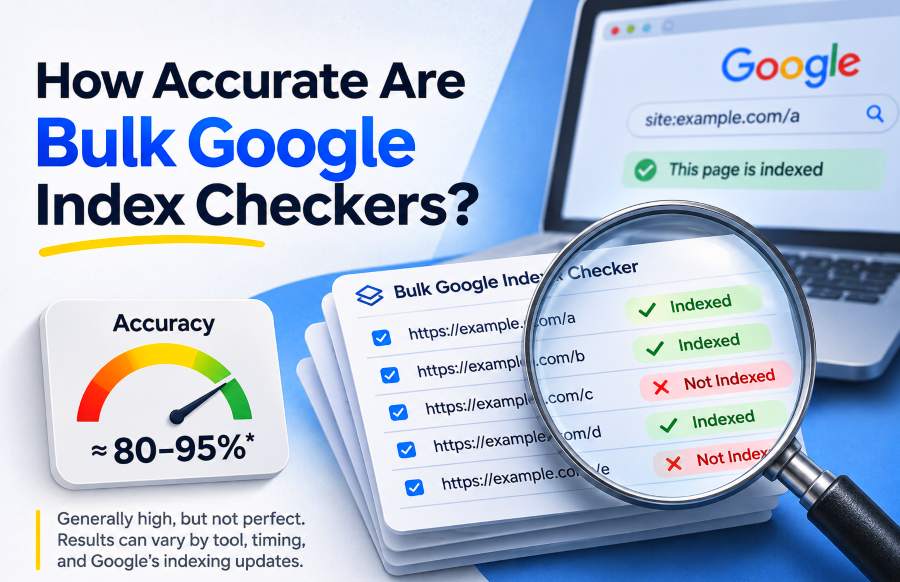
If you need to check hundreds or thousands of URLs, use a bulk index checking workflow first and investigate unusual URLs individually afterward.
The most common mistake is using one test to answer a completely different question.
A successful Live Test does not mean:
“Google has indexed this URL.”
A failed site: search does not automatically mean:
“This page is not in Google's index.”
And failing to rank for a keyword does not automatically mean:
“Google hasn't indexed my page.”
Keeping those distinctions clear makes indexing investigations much more useful.
How to Check Indexed Pages in Bulk
Search Console works extremely well when you need to diagnose one important page.
It becomes much less practical when your audit contains thousands of URLs.
Imagine manually inspecting 10,000 ecommerce product pages.
Even if every inspection took only 20 seconds, checking them one by one would take more than 55 hours of continuous work.
At that scale, you do not need a deep diagnosis of every URL first.
You need segmentation.
Your first goal should be to identify groups such as:
Indexed URLs.
URLs that appear to be unindexed.
Pages whose indexing status recently changed.
High-value pages requiring manual investigation.
Templates or directories where many URLs show the same pattern.
Once the unusual group has been isolated, you can inspect representative examples in Search Console.
For larger URL sets, BulkIndexCheckr can be used to check Google index status in bulk.
The platform supports batches of up to 50,000 URLs, and URLs can be provided through CSV files, manual input, or sitemap-based workflows.
A bulk checker does not replace the deeper diagnostic information available in Google Search Console.
Instead, it changes the order of your investigation.
A practical workflow looks like this:
Check the complete URL list.
Separate URLs with missing or changed index status.
Group affected pages by template, section, content type, or publication date.
Inspect representative examples in Search Console.
Identify and fix the shared cause when one exists.
For example, imagine that 480 apparently unindexed pages all belong to a recently launched /locations/ template.
That pattern is much more useful than seeing 480 individual “not indexed” results.
It immediately suggests that the problem may be related to the template, internal linking, canonical setup, rendering, content quality, or another shared configuration.
Google Index Checker vs. Google Search Console: Which Should You Use?
You do not necessarily have to choose between them.
They are useful for different parts of the indexing workflow.
Google Search Console is better for detailed diagnosis of individual URLs you own.
It can provide information about crawl activity, index status, canonical selection, and other page-level signals.
A Google index checker becomes useful when your biggest problem is scale.
If you are checking one landing page after a website migration, Search Console is usually enough.
If an SEO agency manages 30 websites containing 100,000 URLs in total, inspecting those URLs manually is not a realistic first step.
BulkIndexCheckr also provides a Google Search Console connection workflow, allowing verified Search Console properties to be managed as part of a larger indexing workflow.
For many SEO teams, the more practical approach is:
Bulk checking for detection → Search Console for diagnosis
The bulk check helps you find the URLs worth investigating.
Search Console helps you understand what happened to those URLs.
What Should I Do After Finding an Unindexed Page?
Do not immediately click Request Indexing.
First ask a more important question:
Should this URL actually be indexed?
Not every URL on a website belongs in Google Search.
A filtered ecommerce URL, tracking parameter, duplicate page, redirected URL, login page, or alternate canonical version may be correctly excluded.
If the page genuinely deserves to appear in Search, investigate the problem in a logical order.
Confirm Google's Current Information
Inspect the URL in Search Console and identify the exact indexing status.
Determine whether Google has:
Discovered the page.
Crawled the page.
Selected another canonical.
Encountered an indexing directive.
Chosen not to index the URL.
If Google has already crawled the page, there is little value in treating the problem primarily as a discovery issue.
Test the Current Version After a Fix
If you recently made a technical change, run Test Live URL.
This can help confirm whether Google can access the corrected version now.
The test becomes particularly useful on JavaScript-heavy websites because the content Google processes after rendering may differ from what appears in the initial HTML response.
Check Indexing Directives
Look for accidental noindex directives in:
HTML meta tags.
HTTP response headers.
Also check whether robots.txt or another access restriction is preventing Google from retrieving information it needs.
Review Canonicalization
If Google selected another canonical URL, investigate why before trying to override the choice.
If two pages contain essentially the same content, Google does not necessarily need both versions in its index.
Improve Discovery When Necessary
Make sure important pages can be discovered through useful internal links.
Important canonical URLs should also appear in your XML sitemap when appropriate.
A single XML sitemap can contain up to 50,000 URLs or reach a maximum uncompressed size of 50 MB. Larger websites need to split their URLs across multiple sitemap files.
After identifying and correcting the underlying problem, requesting indexing may make sense.
How to Submit a URL to Google After Fixing It
For an individual URL on a verified property, Google Search Console provides a Request Indexing option inside URL Inspection.
This can be useful after you have fixed a genuine problem or published important new content.
However, requesting indexing should never be confused with guaranteed indexing.
Submitting a URL does not force Google to crawl it immediately, and it does not guarantee that Google will add the page to its index.
That is why repeatedly requesting indexing for an unchanged page is usually less useful than finding out why the URL was excluded.
For larger websites, XML sitemaps provide a more scalable way to tell Google about canonical URLs you want it to discover and consider.
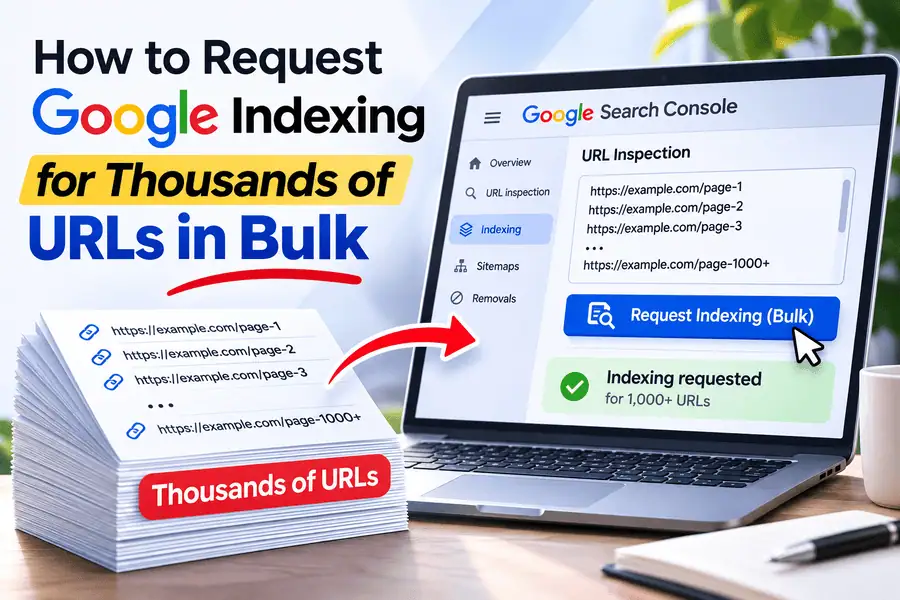
BulkIndexCheckr also provides a bulk indexing request workflow for users handling larger URL sets.
A much healthier indexing workflow is:
Check → diagnose → fix → submit when appropriate → verify later
Not:
Submit → submit again → submit again → eventually investigate
The second approach wastes time because it treats indexing requests as a solution instead of a follow-up action.
How Long Does Google Take to Index a Page?
There is no guaranteed indexing deadline.
Some newly published content can appear in Google's index within a few days, while other pages can take considerably longer.
Google also does not guarantee that every crawlable page will eventually be indexed.
Instead of focusing only on the number of hours or days that have passed, watch how the URL moves through the indexing process.
For example:
Unknown → Discovered
Google has learned that the URL exists.
Discovered → Crawled
Google has fetched the page.
Crawled → Indexed
Google has added the page to its index.
Indexed → Impressions and clicks
The conversation is no longer mainly about indexing. It has moved into search visibility and performance.
This stage-based approach is much more useful than expecting every page to be indexed within the same fixed period.
A newly published article on a frequently crawled news website may be processed very differently from a deeply buried page on a site that changes only occasionally.
Should Every Page on a Website Be Indexed?
No.
Trying to achieve a 100% raw indexing rate is usually the wrong objective.
Only canonical pages that deserve to appear in Search need to be indexed.
Large websites often generate many technical or duplicate URLs, including:
Tracking parameters.
Sorting URLs.
Filter combinations.
Duplicate product variants.
Internal search pages.
Redirected URLs.
Alternate canonical versions.
Imagine an ecommerce site that technically exposes 150,000 URLs but only 40,000 of them represent unique pages intended to attract organic search traffic.
Having fewer than 150,000 indexed URLs would not automatically mean something is wrong.
The more useful question is:
Are the valuable canonical pages that are meant to rank actually being indexed?
That is the metric that matters.
Trying to index every technical URL can waste crawl resources and SEO effort while creating unnecessary duplication.
Can an Indexed Page Later Disappear From Google?
Yes.
Being indexed today does not guarantee that a URL will remain indexed forever.
A previously indexed page can later:
Redirect somewhere else.
Receive a
noindexdirective.Become unavailable.
Move into another canonical cluster.
Change substantially.
Be replaced by another URL.
Stop being represented separately in Google's index.
This is why indexing history can be more valuable than a single one-time check.
A one-time index check answers:
“What is indexed right now?”
Monitoring can answer:
“What changed?”
That difference can be extremely important.
Imagine that 300 revenue-generating category pages disappear from Google's index shortly after a deployment while the rest of the website remains stable.
Seeing that pattern quickly gives your SEO or development team a much stronger starting point for investigation.
BulkIndexCheckr provides scheduled index monitoring with daily, weekly, and monthly checking options.
For a small website with a few dozen important pages, occasional manual checks may be enough.
For ecommerce stores, publishers, agencies, large migrations, or websites with thousands of valuable landing pages, detecting indexing changes automatically can be much more useful than repeatedly performing isolated manual checks.
Frequently Asked Questions About Google Indexing
How do I know if Google indexed my page?
Inspect the exact URL using Google Search Console's URL Inspection tool.
If Search Console reports “URL is on Google,” the URL has been indexed and is eligible to appear in Search.
That does not guarantee that it will rank for a particular keyword.
What is the easiest way to check a URL without Search Console?
Try searching Google with an exact site: query.
For example:
site:https://example.com/page
If the page appears, that is useful evidence that Google can return it.
If it does not appear, do not automatically assume that the page is unindexed because site: results are not exhaustive.
Why does Google say “Crawled – currently not indexed”?
It means Google successfully fetched the URL but did not add it to its index at that time.
Instead of repeatedly requesting another crawl, investigate the quality and uniqueness of the page, rendering, canonicalization, internal linking, and whether groups of similar URLs are showing the same pattern.
Can a page pass the Live Test and still not be indexed?
Yes.
Test Live URL checks whether Google can currently access and process the page.
It does not confirm that Google has already added the URL to its index, and it does not guarantee that Google will index it later.
Does submitting a sitemap guarantee indexing?
No.
An XML sitemap helps Google discover important URLs and understand which canonical pages you want it to consider.
It does not guarantee that every submitted URL will be crawled or indexed.
Is site:example.com an accurate way to count indexed pages?
No.
Google's site: operator does not necessarily return every indexed URL.
Its approximate result count should not be treated as an exact measurement of index coverage, especially on large websites.
Can Google ignore my canonical tag?
Yes.
A canonical tag is an important signal, but it is not an absolute command.
Google can choose another canonical URL based on signals such as redirects, HTTPS, sitemap inclusion, internal linking, canonical annotations, and similarities between duplicate pages.
Use the Index Check to Decide What to Investigate Next
Checking whether a page is indexed becomes valuable when the result helps you decide what to do next.
For an individual URL you control, start with Google Search Console URL Inspection.
It gives you the strongest direct information about Google's indexed version of the page and can reveal details that a normal Google search cannot provide.
Use a site: query when you need a quick public check, especially for a page you do not control. Just remember that a missing result is not definitive proof that Google has not indexed the URL.
When your investigation grows from a handful of pages to hundreds or thousands, change the workflow instead of repeating the same manual process.
You can use BulkIndexCheckr's bulk index checker to identify URLs that may require attention, then move into Google Search Console to investigate the important exceptions in greater detail.
A useful diagnostic sequence is:
Does Google know the URL exists? → Has Google crawled it? → Was the page indexed? → Did Google choose another canonical? → Is the indexed page being shown for relevant searches?
Those are five different questions.
Understanding the difference between them is what turns a simple index check into a useful SEO diagnosis.