Why Isn't My Page Indexed by Google? 9 Causes and Fixes
Ethan Parker

If Google is not indexing your page, repeatedly clicking Request Indexing is rarely the best first move.
Start by inspecting the exact URL in Google Search Console and finding out where the page stopped progressing.
A missing URL can have several very different explanations. Google may not know the page exists yet. It may have discovered the URL but not crawled it. Googlebot could be blocked, the page might contain a noindex directive, another URL may have been chosen as canonical, or Google may have crawled the page successfully and still decided not to index it.
Sometimes nothing is actually broken. Google may simply not have processed your latest change yet.
Google Search Console gives you several useful clues, particularly:
Page fetch
Crawl allowed?
Indexing allowed?
Google-selected canonical
If you have not confirmed the URL's current status yet, start with our pillar guide on how to check if a page is indexed by Google.
Once you know what Search Console is reporting, diagnose that specific problem instead of trying random indexing fixes.
Why Isn't My Page Indexed by Google?
A page can remain outside Google's index because something is genuinely wrong, but it can also be excluded for a perfectly valid reason.
That distinction matters.
A page marked Not indexed does not automatically have an SEO problem.
URLs that often remain outside the index intentionally or harmlessly include:
Redirected URLs
Duplicate pages
Filter and parameter URLs
noindexpagesAlternate canonical versions
Deleted pages
For a page that genuinely should appear in organic search, work through the problem in this order:
Confirm Google knows the exact URL.
Find out whether Google has crawled it.
Check whether Googlebot can access the page.
Confirm that indexing is allowed.
Compare your preferred canonical with Google's selected canonical.
Check whether Google can render the important content.
Only after the technical checks pass, investigate duplication and whether the page provides enough independent value.
Following that order prevents a lot of wasted work.
If Google has never discovered the page, rewriting another 1,000 words is unlikely to solve the immediate problem.
If Google crawled the page but chose a different canonical URL, repeatedly requesting indexing does not resolve the duplicate relationship.
And if Search Console already says the URL is indexed but it receives no impressions, the problem has moved beyond indexing.
1. Google May Not Know the Page Exists Yet
Sometimes the explanation is surprisingly simple: Google has not discovered the URL.
Inspect the exact page in Google Search Console.
If URL Inspection reports that the URL is unknown to Google, Google's systems have not previously recorded that URL.
The next question is how Google is supposed to find it.
Google commonly discovers pages through crawlable links and XML sitemaps.
Imagine you publish:
https://example.com/blog/new-seo-study
The URL works perfectly when you open it directly.
But suppose:
It is missing from the sitemap.
No category page links to it.
No related article links to it.
It is not reachable through your site's normal navigation.
The page exists for anyone who already knows the address, but Googlebot does not automatically receive a notification every time your CMS creates a new URL.
Google needs a discovery path.
That might come from:
An internal link
An external link
Your XML sitemap
A manual indexing request
Another crawlable source
This is why internal linking is part of technical SEO, not just a ranking tactic.
Important pages should normally be reachable through the real structure of the website rather than existing only as records inside a CMS.
How to Fix It
Make sure the page:
Appears in the correct XML sitemap.
Has crawlable internal links pointing to it.
Can be reached through relevant categories, hubs, or supporting pages.
Returns the correct HTTP response.
Is not accidentally orphaned.
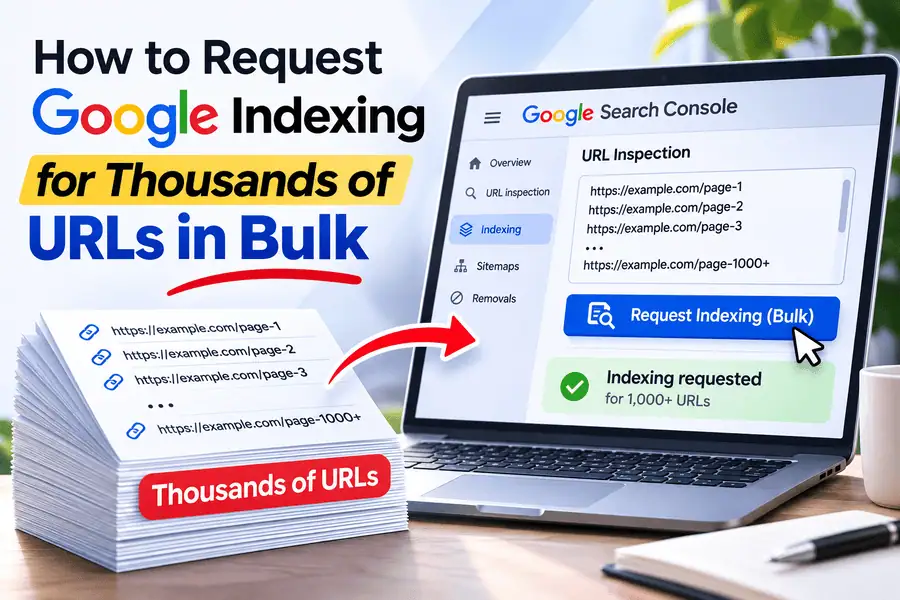
For an important new page, you can also use URL Inspection and request indexing after confirming that the live page is accessible.
2. What Does “Discovered – Currently Not Indexed” Mean?
Discovered – currently not indexed means Google knows the URL exists but has not crawled it yet.
That detail is important.
Google has discovered the URL, but it has not yet fetched and evaluated the page.
So you cannot reasonably conclude from this status alone that Google looked at your content and rejected it.
Rewriting the article immediately may therefore solve the wrong problem.
A few newly discovered URLs sitting in this state temporarily may be completely normal.
The situation becomes more interesting when large groups of important pages remain there for an extended period.
For example, imagine that 10,000 new product pages all remain Discovered – currently not indexed.
That is no longer just a question about one product page.
You should start looking for broader patterns involving:
Site architecture
Internal linking
Crawl paths
Sitemap configuration
Server performance
Large volumes of low-value URLs
Crawl demand
Entire directories or templates
If all the affected URLs belong to one new section of the website, investigate that section first.
How to Fix It
Make sure important URLs have clear internal crawl paths and appear in clean XML sitemaps.
Also look at whether your site generates large numbers of unnecessary URLs that may be competing for crawl attention.
For large sites, investigate the pattern rather than manually requesting indexing for every page.
3. Googlebot May Be Blocked From Crawling the Page
Google cannot properly process a normal webpage if Googlebot cannot access it.
URL Inspection includes a Crawl allowed? field that can help identify robots.txt restrictions.
One of the most common mistakes here is treating robots.txt and noindex as though they do the same thing.
They do not.
robots.txt mainly controls whether crawlers can access a URL.
noindex tells Google that content it can access should not appear in the search index.
Those differences can create confusing situations.
Suppose your robots.txt contains:
Disallow: /page/
but the page itself contains:
<meta name="robots" content="noindex">
You might think you have given Google two instructions not to index the page.
In reality, blocking Googlebot from crawling the URL can prevent it from seeing the noindex directive in the HTML.
That is why one Search Console field should not be interpreted in isolation.
If Googlebot could not crawl the page, Search Console may not have been able to inspect all of its indexing directives.
How to Fix It
Review your robots.txt rules carefully.
If the page is supposed to rank:
Make sure Googlebot is allowed to crawl it.
Check whether directories are being blocked too broadly.
Test the exact URL rather than assuming a rule affects only the pages you intended.
Run a Live Test after correcting the restriction.
Do not use robots.txt as a substitute for noindex.
4. An Accidental noindex Directive May Be Excluding the Page
A page can work perfectly for users while explicitly telling Google not to index it.
The most common version is:
<meta name="robots" content="noindex">
A similar directive can also be delivered through an HTTP X-Robots-Tag header.
Search Console exposes this through the Indexing allowed? information.
If indexing is not allowed and the page is supposed to appear in Search, find out where that directive is coming from.
This issue is particularly common during website launches and migrations.
A staging environment often intentionally uses noindex so unfinished pages do not appear in Google.
That is fine.
The problem starts when the same setting reaches production.
Your website can look completely normal to visitors while every affected page continues telling Google:
Do not index me.
How to Fix It
Find and remove the unintended restriction.
Check:
Robots meta tags
SEO plugin settings
CMS visibility settings
HTTP
X-Robots-TagheadersShared templates
Environment-specific configuration
After correcting the page, run Test Live URL.
Make sure Google's live test now sees the indexable version before requesting indexing again.
The correct order is:
Remove the blocker → verify the live page → request indexing if appropriate
not:
Keep requesting indexing while the blocker remains
5. Google May Be Unable to Fetch the URL Correctly
Google cannot properly evaluate a page it cannot retrieve.
Search Console's Page fetch information can show whether Google successfully fetched the URL during the crawl represented in the report.
A page intended to return normal content might instead return:
500 Internal Server Error
or:
403 Forbidden
or another error response.
Redirects can create problems too.
Examples include:
Redirect loops
Very long redirect chains
Broken destinations
Malformed redirects
Final URLs that cannot be processed correctly
One important lesson is that opening the page successfully in your own browser does not prove Googlebot received the same thing.
Your browser may have:
Login cookies
Cached content
Location-specific routing
Session information
Different bot-handling rules
Authentication already completed
Googlebot may receive a completely different response.
How to Fix It
Use Search Console and server-side checks to confirm what Google actually receives.
Review:
HTTP status code
Server logs
Firewall rules
CDN or bot protection
Authentication requirements
Redirect behavior
Geographic restrictions
If Googlebot is being denied while normal visitors are allowed through, fix the access problem before focusing on content or indexing requests.
6. Google May Have Chosen Another Canonical URL
Sometimes your content is not really missing from Google.
Google has simply decided that another URL should represent it.
When Google finds duplicate or very similar pages, it can group those URLs into a cluster and choose one representative version.
That page becomes the canonical URL.
Search Console therefore shows two important pieces of information:
User-declared canonical
and:
Google-selected canonical
If those values are different, the URL you inspected may not receive its own independent place in the index.
Consider these two pages:
/seo-tools
and:
/best-seo-tools
Imagine both pages:
Target essentially the same topic.
Use almost identical copy.
Have the same sections.
Serve the same search intent.
Both use self-referencing canonical tags.
You may be telling Google that both pages should be independent.
Google can still decide that the content is too similar and cluster them together.
This is why simply changing:
<link rel="canonical">
is not always enough.
Canonicalization is based on multiple signals, not one HTML tag.
How to Fix It
First identify which URL Google selected.
Then review whether your canonical signals agree across:
rel="canonical"Internal links
Redirects
XML sitemaps
HTTPS versions
Duplicate content
Preferred URL structure
If you truly need both URLs indexed independently, make sure they serve genuinely different purposes rather than being minor keyword variations of the same page.
Canonical re-evaluation can also take time after significant changes, so do not expect every adjustment to appear immediately.
7. What Does “Crawled – Currently Not Indexed” Really Mean?
This is one of the most misunderstood Search Console statuses.
Crawled – currently not indexed means Google fetched the page but did not add it to the index at that time.
The status does not tell you one universal reason.
It does not mean:
“Add another 500 words.”
It does not mean:
“Build more backlinks.”
It does not mean:
“Request indexing every morning.”
And it does not automatically mean you have a server problem.
The important fact is that Google already crawled the URL.
That means your investigation should move beyond basic discovery.
First rule out technical edge cases such as rendering.
Then look at whether the page provides enough independent value compared with other pages Google already knows.
This becomes especially important on websites with:
Programmatic SEO pages
Location pages
Product variants
Tag archives
Near-identical service pages
Keyword-variation landing pages
Large templated sections
Suppose a website creates:
/google-index-checker
/check-google-index
/google-index-check-tool
All three pages are technically valid.
Each has a 200 response.
Each is indexable.
Each has its own self-canonical.
But all three solve the same problem using almost identical content.
Technical indexability does not require Google to treat all three as valuable independent documents.
The better question is:
What distinct search need does this page satisfy that the others do not?
That moves the investigation from basic technical SEO into content architecture.
How to Fix It
Review the affected URL against nearby pages.
Ask whether it:
Provides genuinely distinct information.
Targets a different search intent.
Adds value beyond changing a keyword or location name.
Duplicates another indexed page.
Belongs to a thin or repetitive template.
Uses coherent canonical signals.
If many similar URLs share this status, analyze the template rather than rewriting pages randomly.
8. Google May Crawl the Page but Fail to Render Its Important Content
A successful crawl does not always mean Google saw the same page you see in your browser.
This is particularly relevant for JavaScript-heavy websites.
Suppose Googlebot initially receives:
<div id="app"></div>
JavaScript is then supposed to load:
The article
Headings
Navigation
Related links
Canonical information
Other meaningful content
If something breaks during rendering, Google can fetch the URL successfully while seeing little useful content.
Possible causes include:
JavaScript exceptions
Blocked APIs
Authentication failures
Missing resources
Client-side rendering bugs
Bot-specific restrictions
That is why rendering deserves its own place in an indexing diagnosis.
How to Check It
In Search Console, use:
Test Live URL → View Tested Page
Inspect both the rendered HTML and screenshot.
Look for your:
Main content
H1 and other headings
Navigation
Internal links
Canonical information
Important page elements
If those elements are missing from Google's rendered version, fix the rendering problem before deciding that Google rejected the content itself.
There is an important distinction here:
Google fetched the URL successfully
does not always mean:
Google processed the complete page exactly as intended
9. Search Console May Not Yet Reflect Your Latest Change
Search Console is extremely useful, but it is not a real-time mirror of everything happening inside Google's systems.
The normal URL Inspection result can reflect information from Google's previous crawl.
That matters when you have just fixed something.
For example:
Yesterday, your page contained noindex.
Today, you remove the directive.
You open Search Console and it still shows the URL as excluded.
That does not necessarily mean your fix failed.
Check the Last crawl date.
If Google's stored inspection information comes from before your deployment, Search Console may simply be showing the old version.
Run Test Live URL to see what Google can access now.
This is why timestamps matter during technical SEO troubleshooting.
Record:
When did Google last crawl the page?
When did you deploy the fix?
What does the Live Test show now?
Without those dates, it is easy to confuse old indexing data with a current technical problem.
Which Indexing Problem Do You Actually Have?
Before applying a fix, classify what Search Console is actually telling you.
If the URL is unknown to Google, investigate discovery.
If it is Discovered – currently not indexed, Google knows the URL but has not crawled it yet. Look at crawl paths, demand, architecture, and site-level patterns.
If the page is blocked by robots.txt, fix crawler access.
If Indexing allowed? says no, find the noindex or equivalent directive.
If Page fetch failed, investigate the server, HTTP response, redirect, firewall, or access issue.
If Google selected another canonical, investigate duplication and conflicting canonical signals.
If the URL is Crawled – currently not indexed, Google already fetched it. Check rendering, duplication, content architecture, and distinct value.
If the page is indexed but not ranking, stop treating it as an indexing problem and move into search-performance analysis.
That simple classification can save hours of unnecessary work.
Start with Google's evidence.
Do not start with whichever SEO fix happens to be most familiar.
Does Weak Internal Linking Stop Google From Indexing a Page?
Weak internal linking can contribute to discovery and crawl-prioritization problems.
But it is not the universal explanation for every page that fails to index.
Google discovers many URLs through links and sitemaps.
A page linked only from an XML sitemap has a very different place in your site architecture from a page linked naturally from:
Navigation
Relevant categories
Supporting articles
Related services
Contextual content
Internal links also help explain relationships between pages.
That does not mean adding 100 random links to an unindexed URL will force Google to include it.
Good internal linking should reflect genuine relationships.
If a page is important enough to attract organic search traffic, it should usually be easy for both users and crawlers to reach through the normal structure of the site.
Does Submitting the URL Again Fix an Indexing Problem?
Sometimes requesting indexing makes sense.
For example, after correcting an important technical issue, you may want Google to revisit the page.
But the request itself is not the fix.
A more useful sequence is:
Identify the issue → fix it → run a Live Test → request indexing if appropriate
If the page still contains:
A
noindexdirectiveA canonical conflict
A rendering failure
Duplicate content
A server error
A crawl restriction
requesting indexing again does not remove any of those conditions.
The same logic applies to Crawled – currently not indexed.
If Google already crawled the page, repeatedly asking it to crawl the same unchanged version is unlikely to address why that page was not selected.
Fix first.
Request afterward.
How Long Should You Wait Before Worrying About an Unindexed Page?
There is no universal deadline.
A page not being indexed after exactly 24 hours, 48 hours, or seven days does not automatically mean something is wrong.
New content may take a few days to move through Google's systems, and some URLs can take longer.
The status and pattern matter more than the stopwatch.
A new article that has been Discovered – currently not indexed for two days is very different from 5,000 important product pages sitting in that state for several weeks.
Likewise, an old page showing Crawled – currently not indexed requires a different investigation from a URL Google has never discovered.
Instead of asking only:
“How long has it been?”
ask:
“What stage has Google reached, and how many similar pages are affected?”
That produces a much more useful diagnosis.
Why Are Hundreds or Thousands of My Pages Not Indexed?
When large groups of pages disappear from the index, stop choosing random URLs to troubleshoot.
Look for a shared pattern.
Large indexing problems often come from shared technical or structural causes.
Examples include:
A robots.txt rule affecting an entire directory
A template accidentally adding
noindexBroken canonical tags
Duplicate parameter URLs
Rendering failures
Sitemap problems
A deployment affecting a shared page type
Imagine this sequence:
Yesterday, 8,000 product pages were indexed.
A deployment changes the shared product template.
Soon afterward, thousands of product URLs move into the same exclusion category.
The useful question is not:
What is wrong with product URL #4,781?
The useful question is:
What changed in the product template?
That shift from individual URL diagnosis to pattern diagnosis is essential on larger websites.
If you first need to identify which URLs are affected, follow our guide on how to check indexed pages in bulk.
For large URL inventories, BulkIndexCheckr can help isolate groups that need deeper investigation in Search Console.
Should Every Unindexed Page Be Fixed?
No.
A useful indexing audit separates unexpected exclusions from URLs that are correctly outside Google's index.
Imagine an ecommerce website generates:
50,000 canonical product pages
20,000 sorting URLs
30,000 filter combinations
10,000 tracking-parameter URLs
The site now exposes 110,000 URLs.
Suppose 60,000 of them are not indexed.
That does not automatically mean you have 60,000 SEO problems.
Many of those URLs may be duplicates or technical variations that should never compete as independent search results.
The better question is:
Which canonical pages intended to generate organic traffic are missing?
Those are the URLs worth prioritizing.
Trying to maximize the raw number of indexed URLs can actually distract you from the pages that matter commercially.
What Should You Do After Fixing the Cause?
After correcting a real indexing problem, verify that Google can now see the fixed version.
For an important individual page, use Search Console's Test Live URL.
Confirm that:
Googlebot can access the page.
The correct content renders.
Indexing is allowed.
The canonical setup is correct.
The previous technical blocker is gone.
Then request indexing if it makes sense.
Do not expect the normal Page Indexing report to update instantly.
Google still has to recrawl and reprocess the URL.
Canonical changes and duplicate-cluster re-evaluation can take additional time.
For sitewide problems, monitor the affected group rather than checking the same favorite URL repeatedly.
If 700 product pages shared the same technical problem, recovery means the affected group begins improving.
One manually submitted product returning to the index does not prove that the template-level issue has been solved everywhere.
Frequently Asked Questions
Why is my page not indexed even though it is in my sitemap?
Being in an XML sitemap does not guarantee indexing.
A sitemap mainly helps Google discover important URLs.
Inspect the page in Search Console to determine whether Google:
Has not crawled it yet
Cannot access it
Found an indexing restriction
Chose another canonical
Crawled it without selecting it for indexing
The sitemap is only one part of the process.
Why isn't my page indexed even though Google crawled it?
If Search Console reports Crawled – currently not indexed, Google fetched the page but did not add it to the index at that time.
There is no single universal cause.
First rule out technical issues such as rendering.
Then investigate duplication, canonical relationships, template patterns, and whether the page provides enough distinct value to justify an independent index entry.
Can I force Google to index a page?
No method guarantees indexing.
You can make the URL easy to discover, remove technical blockers, improve the page, resolve duplicate relationships, and request indexing after meaningful changes.
Google still decides whether the page should enter the index.
Why does Search Console still say my page is not indexed after I fixed it?
The stored inspection information may come from a crawl that happened before your fix.
Check the Last crawl date.
Then run Test Live URL to inspect the version Google can access now.
If the live test sees the corrected version, Google may simply need time to recrawl and reprocess the page.
Can duplicate content prevent my exact URL from being indexed?
Yes.
Google can group duplicate or highly similar URLs together and choose one as the canonical.
When that happens, another version may not receive its own separate index entry.
Compare the user-declared canonical with the Google-selected canonical in Search Console before assuming Google failed to process your page.
Is “Discovered – currently not indexed” the same as “Crawled – currently not indexed”?
No.
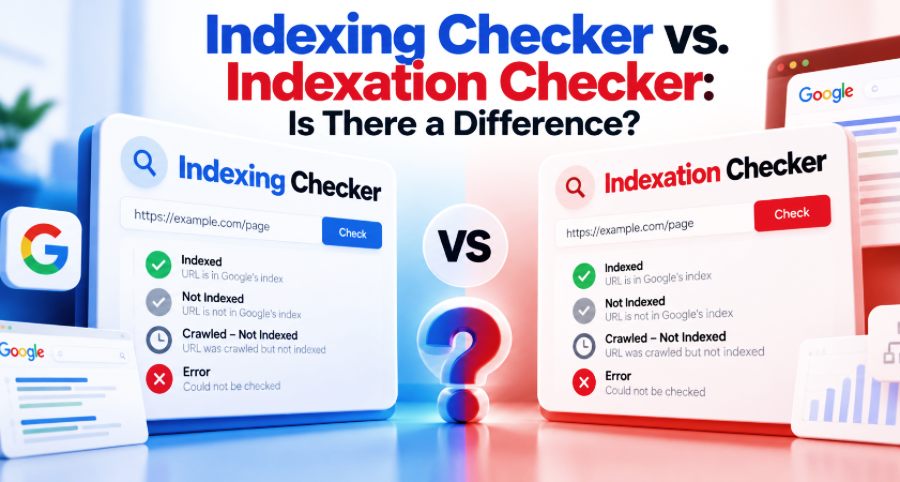
Discovered – currently not indexed means Google knows the URL exists but has not crawled it yet.
Crawled – currently not indexed means Google already fetched the URL but did not index it at that time.
They describe different stages and require different investigations.
Fix the Stage That Actually Failed
When an important page is missing from Google, trying every indexing trick you find is rarely the fastest route.
Use Search Console to identify the last stage the URL successfully reached.
If Google does not know the page exists, improve discovery.
If Google knows the URL but has not crawled it, investigate crawl paths, site architecture, and broader patterns.
If Googlebot cannot fetch the URL, fix the accessibility or server problem.
If indexing is explicitly blocked, remove the unwanted directive.
If Google chose a different canonical, investigate the duplicate relationship and conflicting signals.
If Google crawled the page successfully but did not index it, verify rendering and then ask whether the URL provides enough independent value to justify its own place in the index.
And if Search Console already confirms that the page is indexed, stop troubleshooting indexing and move your attention to rankings, impressions, relevance, and search intent.
For the verification process itself, see How to Check if a Page Is Indexed by Google.
If hundreds or thousands of URLs are affected, use How to Check Indexed Pages in Bulk to identify patterns before diagnosing individual pages.
The question “Why isn't my page indexed by Google?” becomes much easier to answer once you stop treating it as one vague problem and identify the exact stage where the URL stopped progressing.